
The Ehome protocol is available in some Safire products and allows us to have connected to the Safire Control Center program a presence or access terminal that is not running on the same local network where we have the Safire Control Center software installed, by opening the service port.
The following shows how the Ehome protocol can be configured on Safire terminals from the Safire Control Center application:
- First, we must connect the Safire terminal to the local network in order to activate the product and register it on the app.
- Once the terminal is registered in the app, go to Access Control - Advanced Function - More parameters
- Once the corresponding terminal has been selected in the Network section, we must configure the Ehome protocol:
Below we indicate what each field within the network parameter of the terminal is used for:
-Group Center: in this parameter, you must choose the group of devices to which the device will belong
-Address Type: choose the type of server address, which in this case can be IP or Domain
-IP Address: specify the public IP address or domain name of the server where the Safire Control Center software is installed.
-Port: the port to be used by this protocol for communication must be specified. By default it is always port 7660, if you want to change it to another port you must also specify it in the Safire Control Center program, as shown in the following image:
-Protocol Type: specify the type of protocol, which in this case must always be Ehome.
-Ehome Version: you must specify the protocol version, in this case, we recommend the Ehome5.0 version, as this version allows you to establish connection credentials for a more secure connection.
-EhomeKey: you must specify the connection password (these fields will be necessary when trying to register the device in the application using the Ehome protocol)
-Account: the name of the Ehome account must be specified (these fields will be necessary when trying to register the device in the software using the Ehome protocol)
- Once the above fields have been configured we must also modify the Upload Mode as follows:
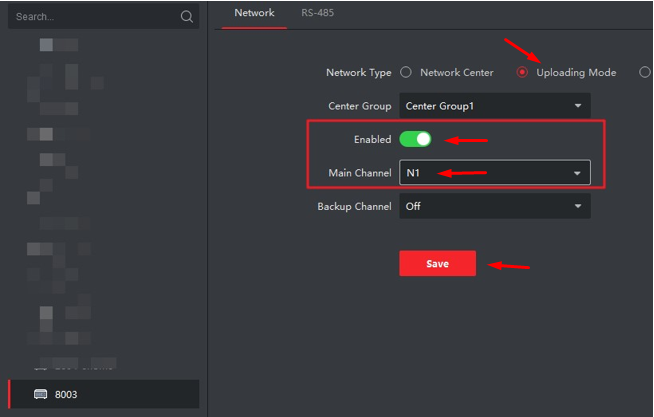
- Once this configuration is done we can connect the terminal outside the local network and we could already register the terminal in the program but this time using the Ehome protocol:
- Once everything is configured we have to wait more or less 1 minute for the communications to be established and in the Devices section the device should already appear as "ONLINE".
For the Ehome protocol to work correctly, you must allow communication on port 7660 (both internal and external communication) by opening the port on the network where the Safire Control Center software is installed.