
Hikvision offers two events to alert you that a camera has stopped monitoring the intended area. Video Tampering detects when the lens has been covered. Scene Change Detection detects a significant alteration to the camera view, for example, if a camera monitoring a door is turned and ends up pointing at the wall.
Which cameras support scene change? The feature depends on the model. It is documented on some Series 3 AcuSense cameras, such as the DS-2CD3126G2-ISU(C), and on Series 7 DeepinView models, such as the iDS-2CD7A46G0/P-IZHSY. To confirm another model, look for Scene Change Detection in the Smart Event section of its datasheet. A mention of Video Tampering alone only confirms that covering detection is supported.
Detection Parameters
| Event | What to configure |
|---|---|
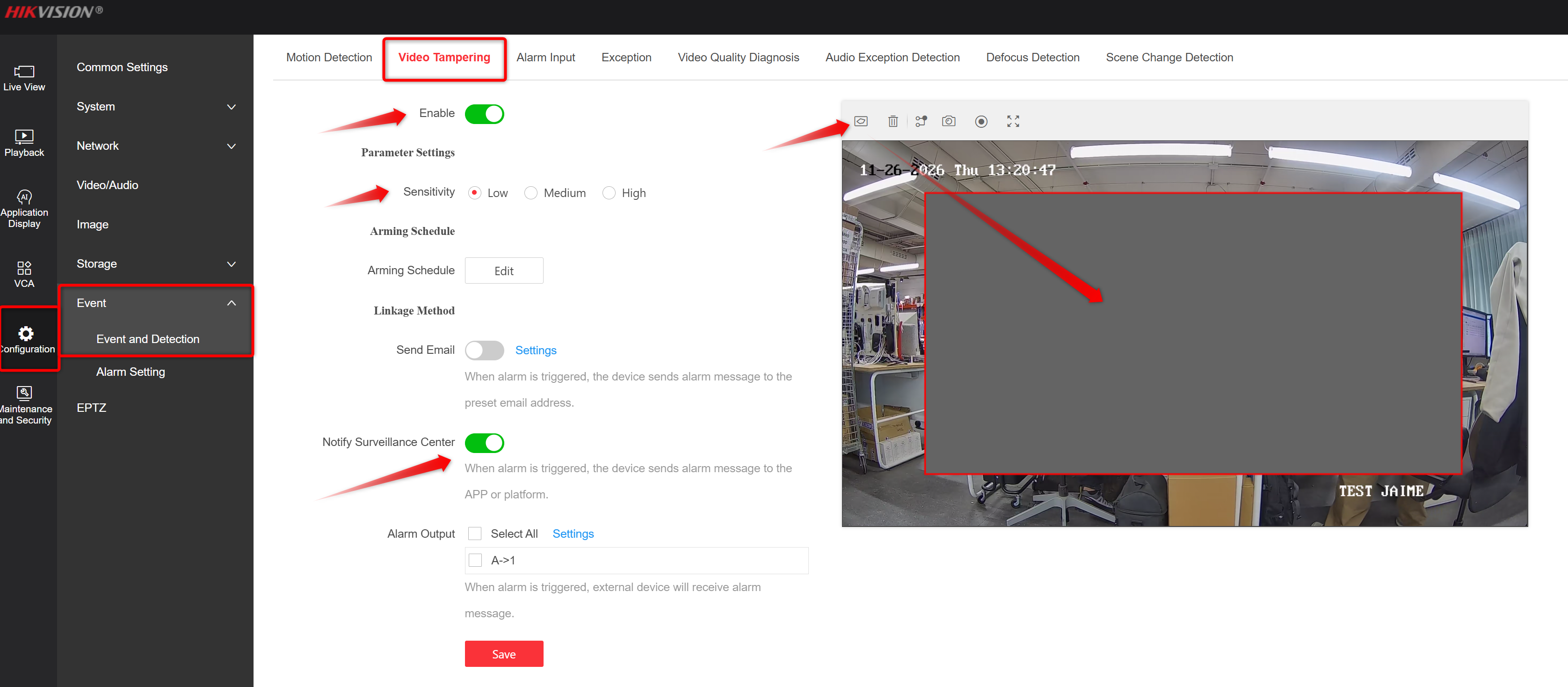
| Video Tampering | Enable the event and draw the target area that you want to monitor over the image. If that area is covered, the camera can generate an alert. Adjust the sensitivity to define how easily covering is detected. |
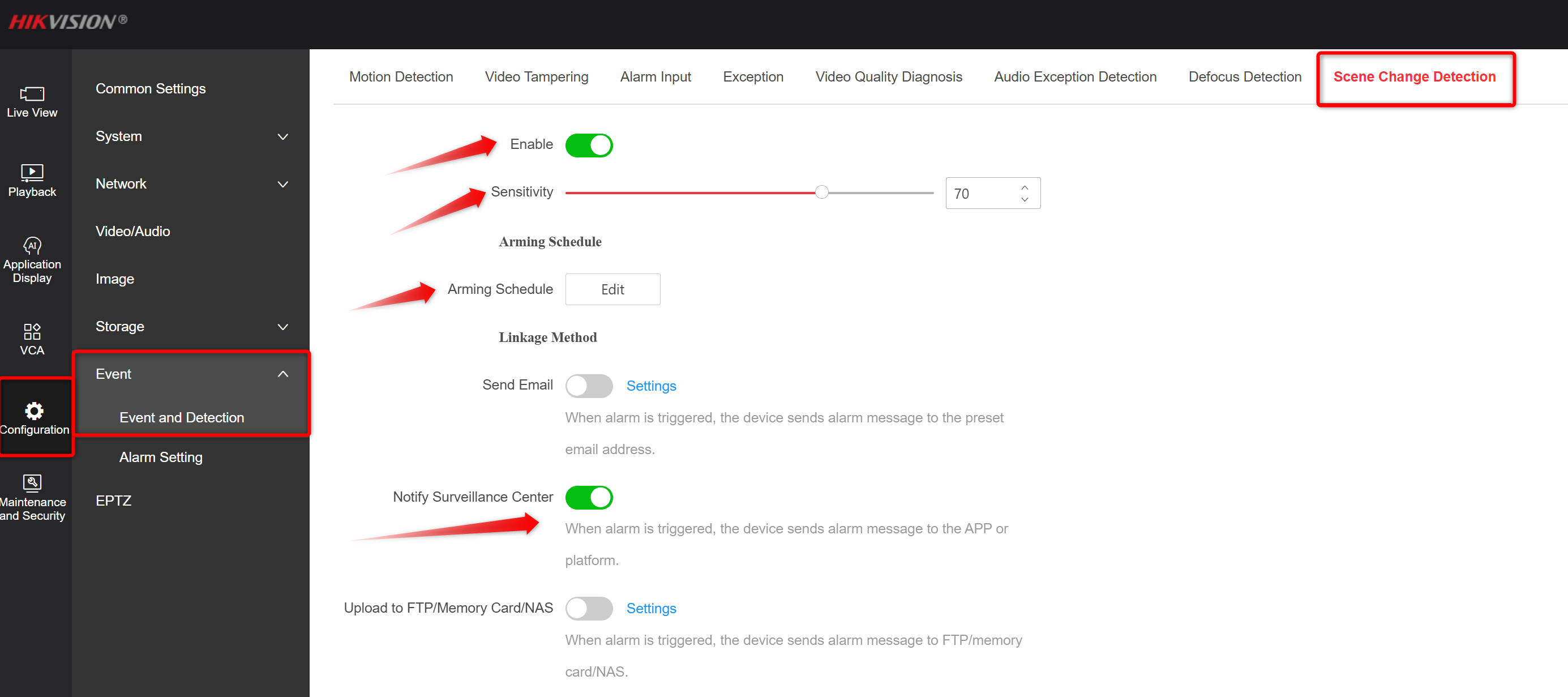
| Scene Change Detection | You only need to enable detection and adjust the sensitivity. The higher the sensitivity, the smaller the change in the camera view required to generate an alert. |
Configuration from the Camera
- Access the camera from a browser and open Configuration → Event → Event and Detection. Select Video Tampering to detect when the lens is covered, or Scene Change Detection to detect a change in the camera view. Apply the parameters indicated in the table.
Interface for the camera-covered event from a camera:
Interface for the scene change event from a camera:
2. In Arming Schedule, define the days and times when the alert should be generated. In Linkage Method, select Notify Surveillance Center (Notify remote software) and click Save. If you want to receive both alerts, save these settings for each event.
Configuration from the Recorder (NVR)
- Access the recorder from a browser and open Event Center → Generic Event.
- In the subevent selector, choose Video Tampering or Scene Change Detection. Select the camera channel and configure the subevent according to the table. The availability of scene change detection depends on the camera and whether the channel is compatible with the NVR.
- For each event, configure the arming schedule, select Notify Surveillance Center under the linkage methods, and save the changes.
Interface for the camera-covered event from a recorder:
Interface for the scene change event from a recorder:
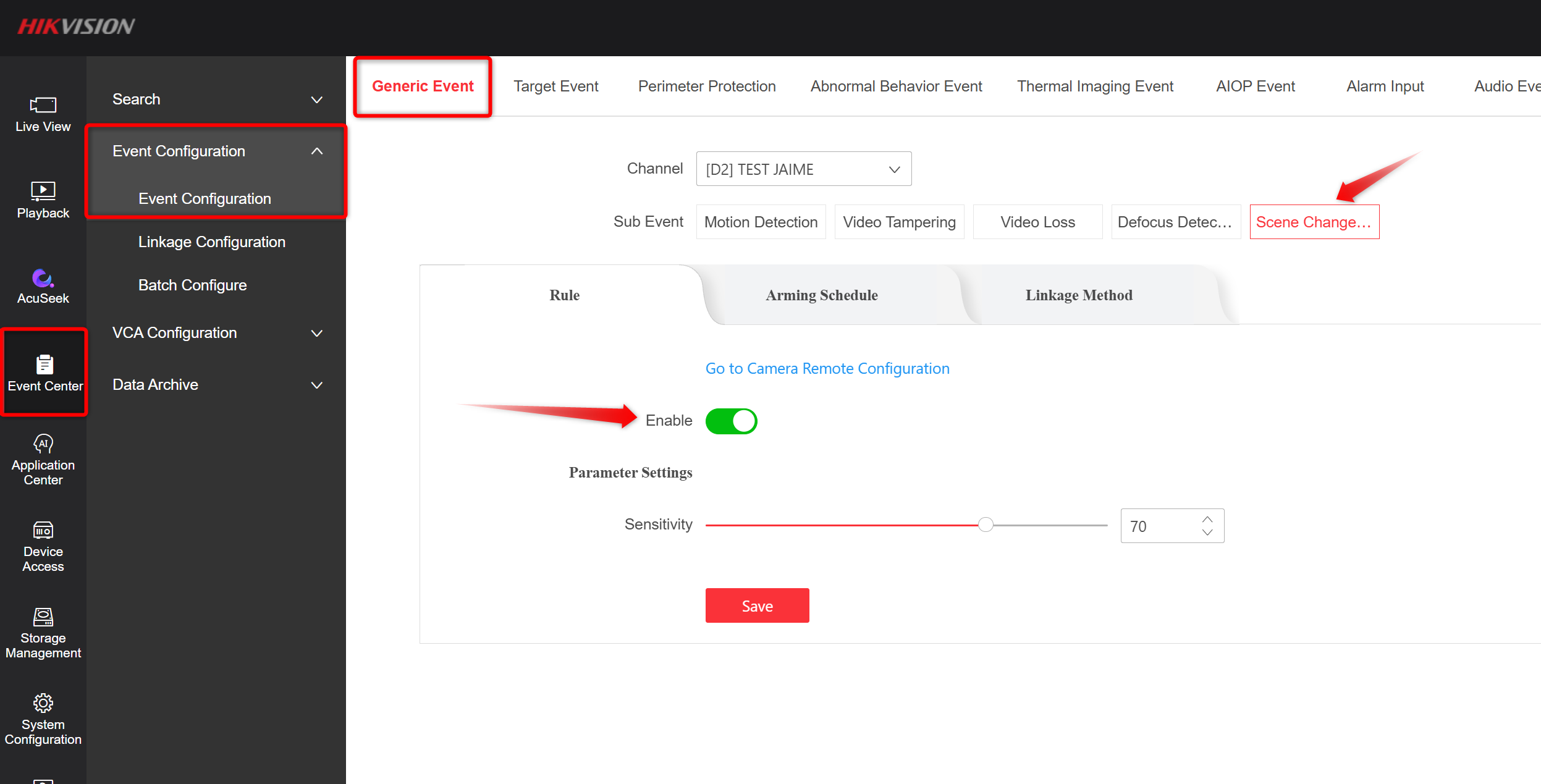
How to check that the alert is received
Check that the device (camera or NVR) is online, that alert reception is enabled in Hik-Connect, and that the phone allows notifications from the app.
During the arming schedule, cover the lens, check that the alert is received, and uncover it again. To test scene change detection, use a test camera, clearly change its view, and then restore its position. Check in Hik-Connect that each alert corresponds to the expected event and channel.